
HPC Cluster Access
Overview
PARAM Shakti is a high-performance computing (HPC) cluster managed by the Computer and Informatics Centre (CIC), IIT Kharagpur. Access to the cluster is granted exclusively through secure shell (SSH) to the designated login node, which serves as the gateway to the compute resources. All computational work must be submitted via the Slurm job scheduler—direct execution of resource-intensive tasks on the login node is strictly prohibited.
Note: The login node is intended only for:
- Job Submission and Monitoring
- File/data Transfer
- Lightweight Compilation (for large builds, submit as a Slurm job)
Two primary storage areas are available to all users:
/home- Persistent user home directory (backed up; limited quota)/scratch- High-performance temporary storage (not backed up; use for job input/output)
Two-Factor Authentication (2FA) Setup
PARAM Shakti enforces two-factor authentication (2FA) for enhanced security. Follow these steps to set up and use 2FA.
Step 1: Install Google Authenticator
Download the Google Authenticator app on your smartphone:
- Android: Google Play Store
- iOS: App Store
Step 2: First-Time Login & 2FA Enrolment
- Connect to the Cluster via SSH (see connection instructions below).
- Complete the CAPTCHA challenge.
- Enter your temporary system-generated password (provided in your welcome email).
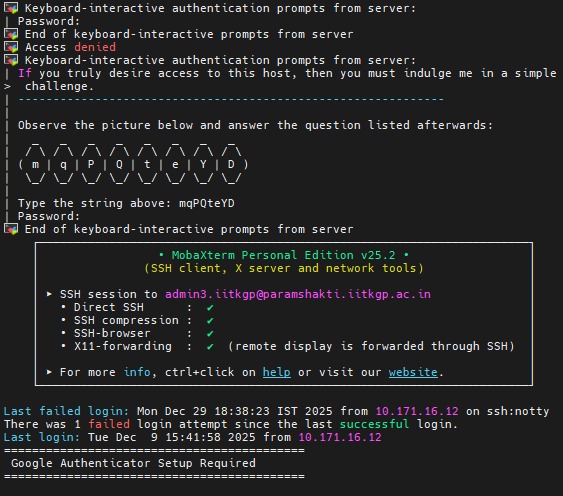
- You'll be prompted to set a new password (must comply with Password Policy).
- A QR code will appear in your terminal.
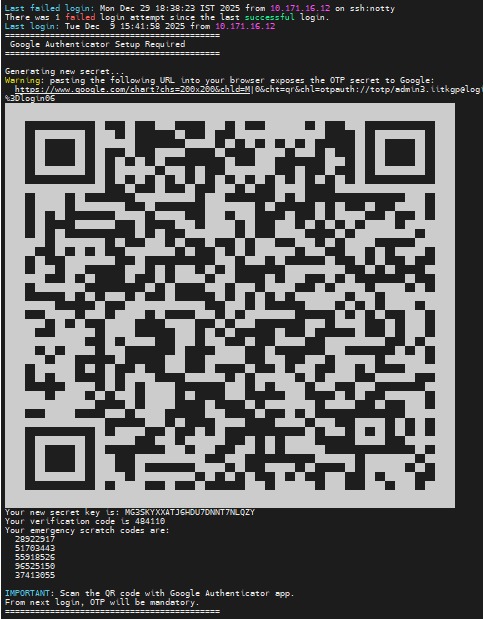
- Open Google Authenticator → tap “+” → “Scan a QR code” and scan the displayed code.
-
A new entry (e.g., Cluster: username@login) will appear in your app.
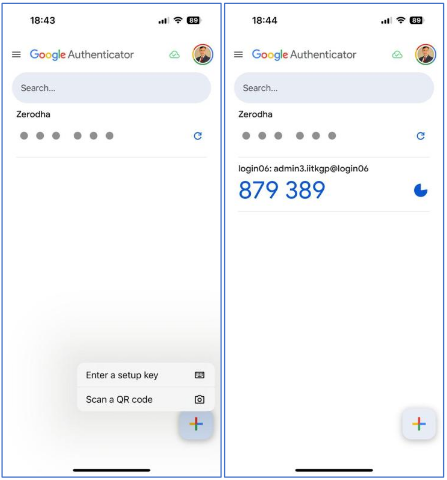
- Enter the 6-digit time-based code (refreshes every 30 seconds) when prompted to complete setup.
Step 3: Subsequent Logins
For every login after setup:
- Solve the CAPTCHA.
- Enter the 6-digit code from Google Authenticator.
- Provide your cluster password.
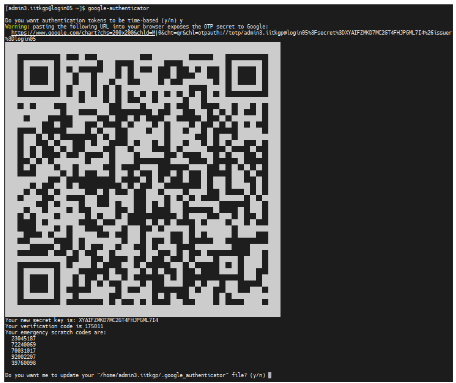
Step 4: Resetting 2FA (e.g., lost device)
If you need to reconfigure 2FA:
- Generate a new secret key and QR code
- Update ~/.google_authenticator
- Enable security options (recommended: yes to all)
Connecting to PARAM Shakti
From Windows
Use one of the following SSH clients:
- MobaXterm (recommended for first-time users): Download MobaXterm (Professional Edition available)
- PuTTY (free and open-source): Download PuTTY
Connection string: username@paramshakti.iitkgp.ac.in
During login, you’ll be prompted for: CAPTCHA → 2FA code → password.
From Linux or macOS
Use the built-in SSH client:
ssh username@paramshakti.iitkgp.ac.in
From Outside IIT Kharagpur Campus Network
Direct external SSH access is disabled. You must first connect via the IIT Kharagpur VPN.
- Request VPN access by emailing: helpdesk@cic.iitkgp.ac.in or shaktisupport@iitkgp.ac.in (Attach the completed VPN-Access.pdf form)
- Once approved, connect to the VPN.
-
Then SSH using the internal IP:
ssh username@10.171.17.201
Account Management
Password Policy
All passwords must adhere to the following:
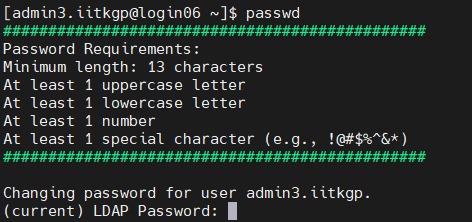
- Minimum 13 characters
- At least one uppercase letter
- At least one lowercase letter
- At least one digit
- At least one special character (e.g., !@#$%^&*)
- Password rotation every 90 days
Changing Your Password
From the login node, run:
passwd
Follow the prompts to set a new compliant password.
Forgot Password?
Raise a request for HPC password change through the login portal:
https://hpc.iitkgp.ac.in/hpc/app