
Using the System
HPC Cluster Access
Overview
PARAM Shakti is a high-performance computing (HPC) cluster managed by the Centre for Computational and Data Sciences (CCDS), IIT Kharagpur. Access to the cluster is granted exclusively through secure shell (SSH) to the designated login node, which serves as the gateway to the compute resources. All computational work must be submitted via the Slurm job scheduler — direct execution of resource-intensive tasks on the login node is strictly prohibited.
The login node is intended only for:
- Job Submission and Monitoring
- File / Data Transfer
- Lightweight Compilation (for large builds, submit as a Slurm job)
Two primary storage areas are available to all users:
/home— Persistent user home directory (backed up; limited quota)/scratch— High-performance temporary storage (not backed up; use for job input/output)
Two-Factor Authentication (2FA) Setup
PARAM Shakti enforces two-factor authentication (2FA) for enhanced security. Follow these steps to set up and use 2FA.
Step 1: Install Google Authenticator
Download the Google Authenticator app on your smartphone:
- Android: Google Play Store
- iOS: App Store
Step 2: First-Time Login & 2FA Enrolment
- Connect to the Cluster via SSH (see connection instructions below).
- Complete the CAPTCHA challenge.
- Enter your temporary system-generated password (from your welcome email). The system automatically triggers 2FA enrolment on first login:
====================================
 Google Authenticator Setup Required
====================================

Generating new secret...
Warning: pasting the following URL into your browser exposes the OTP secret to Google:
  https://www.google.com/chart?chs=200x200&cht=qr&chl=otpauth://totp/username@login06

Your new secret key is: MG3SKYXXATJ6HDU7DNNT7NLQZY
Your verification code is: 484110
Your emergency scratch codes are:
  28922917
  51703442
  55918526
  96525150
  37413055

IMPORTANT: Scan the QR code with Google Authenticator app.
From next login, OTP will be mandatory.
- Set a new password when prompted (must comply with Password Policy below).
- Scan the QR code shown in your terminal using Google Authenticator.
- Open Google Authenticator → tap "+" → "Scan a QR code".
- A new entry (e.g., login06: username@login06) will appear in your app:
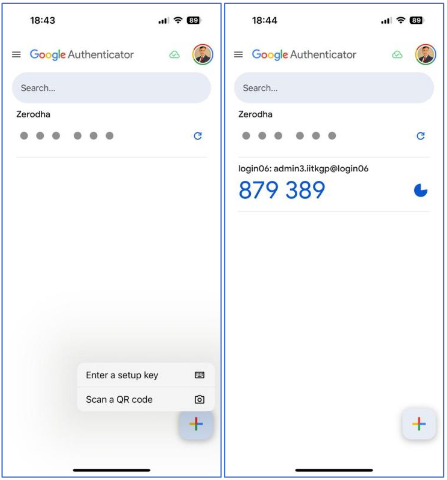
- Enter the 6-digit OTP (refreshes every 30 s) when prompted to complete setup.
Save your emergency backup codes! During setup, you'll receive 4–5 one-time-use emergency codes. Store them securely offline (e.g., printed or in a password manager). These are critical if you lose phone access.
[username@login06 ~]$ google-authenticator
Do you want authentication tokens to be time-based (y/n): y
Warning: pasting the following URL into your browser exposes the OTP secret to Google:
  https://www.google.com/chart?chs=200x200&cht=qr&chl=otpauth://totp/username@login06

Your new secret key is: XYAIF2N03MC2OTFHCPQNLIT7YE5
Your verification code is: 171011
Your emergency scratch codes are:
  53645187
  39749829
  53082287
  93384487
  70637813

Do you want me to update your '/home/username/.google_authenticator' file? (y/n): y
Step 3: Subsequent Logins
For every login after setup:
- Solve the CAPTCHA.
- Enter the 6-digit code from Google Authenticator.
- Provide your cluster password.
Step 4: Resetting 2FA (e.g., lost device)
If you need to reconfigure 2FA:
- Generate a new secret key and QR code
- Update
~/.google_authenticator - Enable security options (recommended: yes to all)
Important: Without your phone or backup codes, you cannot log in. Contact support immediately if both are lost.
Connecting to PARAM Shakti
From Windows
Use one of the following SSH clients:
- MobaXterm (recommended for first-time users) — Professional Edition available
- PuTTY (free and open-source)
Connection string: username@paramshakti.iitkgp.ac.in
During login, you'll be prompted for: CAPTCHA → 2FA code → password.
From Linux or macOS
Use the built-in SSH client:
ssh username@paramshakti.iitkgp.ac.in
From Outside IIT Kharagpur Campus Network
- The latest Windows, Linux, and macOS systems include a built-in SSH client, so no additional software installation is required.
- Open a terminal (or Command Prompt/PowerShell on Windows) and connect using the following command, specifying port 4422:
ssh username@paramshakti.iitkgp.ac.in -p 4422 - Replace
usernamewith your Param Shakti login username. - The remaining login procedure is the same as that for users connecting from within the IIT Kharagpur campus network.
Account Management
Password Policy
All passwords must adhere to the following:
- Minimum 13 characters
- At least one uppercase letter
- At least one lowercase letter
- At least one digit
- At least one special character (e.g.,
!@#$%^&*) - Password rotation every 90 days
Changing Your Password
From the login node, run:
passwd
# Follow the prompts to set a new compliant password.
[username@login06 ~]$ passwd
########################################
Password Requirements:
  Minimum length: 13 characters
  At least 1 uppercase letter
  At least 1 lowercase letter
  At least 1 number
  At least 1 special character (e.g., !@#$%^&*)
########################################

Changing password for user username.
(current) LDAP Password: _
Forgot Password?
Raise a request for HPC password change through the login portal: https://hpc.iitkgp.ac.in/app
Job Scheduling
This information is applicable for IITKGP internal users. Other users in NSMapp, NSMext, etc., are requested to contact CDAC for information on storage, charging policy, and queuing priority.
Scheduler
PARAM Shakti uses Slurm 22.05.09 (open-source) as the workload manager for the HPC facility. The following partitions (queues) have been defined to meet different computational requirements.
| Partition | Min–Max Cores / Nodes per Job | Max Walltime | Priority | Comments |
|---|---|---|---|---|
| Shared | 1–36 cores | 03 days | 200 | Compute nodes only. Node sharing is allowed between different jobs. |
| Medium | 1–10 nodes | 03 days | 200 | Compute and high-memory nodes. Nodes allocated exclusively; node sharing not allowed. |
| Large | 1–10 nodes | 07 days | 10 | Compute and high-memory nodes. Intended for long-running jobs; node sharing not allowed. |
| GPU | GPU nodes only. Configuration remains unchanged. | — | — | — |
Partition Details
- Shared Partition: Designed for serial and OpenMP jobs. Users may request a minimum of 1 core and a maximum of 36 cores. The maximum walltime is 3 days.
- Medium Partition: Suitable for single-node and multi-node jobs. Entire nodes are allocated exclusively. Users may request between 1 and 10 nodes. The parameter
--ntasks-per-node=40must not be changed. Maximum walltime is 3 days. - Large Partition: Similar to the medium partition but intended for longer jobs with a maximum walltime of 7 days. Due to its lower priority, this partition should be used only when longer walltime is required.
- GPU Partition: Dedicated to GPU-based workloads. Configuration remains unchanged.
Types of Nodes
- Compute Nodes (cn): The system comprises 384 compute nodes, labelled
cn001tocn384. These nodes are distributed across the shared and medium/large partitions based on historical usage and job queue demand. - High-Memory Nodes (hm): A total of 36 high-memory nodes, labelled
hm001tohm036, are available only in the medium and large partitions. To request more than 4.3 GB of memory per core, specify either:#SBATCH --exclude=cn[085-384]#SBATCH --mem-per-cpu=AA G(replace AA with a value between 4 and 18)
- GPU Nodes (gpu): The system includes 22 GPU nodes, labelled
gpu001togpu022. Accessible exclusively through the GPU partition. To request a GPU:#SBATCH --gres=gpu:1
Storage Policy
| File System | Quota | Retention Period |
|---|---|---|
| /home | Soft Limit: 40 GB Hard Limit: 50 GB *Except for UG students | Unlimited |
| /scratch | Soft Limit: 2 TB | 60 days Files older than the retention period will be deleted |
Users can check their /home and /scratch quota using the myquota command.
[username@login05 ~]$ myquota
Filesystem    used    quota   limit   grace   files   quota   limit   grace
   /home       68k     40G     50G       -       17       0       0       -
/scratch        4k      2T      0k       -        1       0       0       -
[username@login05 ~]$
Usage Instructions
/home/<username>/— Used for installing applications./scratch/<username>/— Used for project / research data.
Users are advised to maintain local backups of their data. Storage and charging policies are subject to change.
Data Safety
Users are advised to keep a backup of their data locally. Once the project/research work is completed, transfer the data from PARAM Shakti to your local system using the commands shown in the File Transfers section. Users' data stored on the scratch directory on PS is NOT backed up or archived by the system administration. The PS administration is also not responsible for restoring damaged or lost files. Backing up and archiving data is the responsibility of the user and his/her Project Guide/Adviser.
Job Submission
Serial
Script for a Single Core Serial Job
#!/bin/bash
#SBATCH -J job_name              # name of the job
#SBATCH -p shared                # partition: available options "shared"
#SBATCH -n 1                     # no of processes
#SBATCH -t 01:00:00              # walltime HH:MM:SS, Max 72:00:00

# list of modules to load, e.g.:
# module load apps/lammps/12.12.2018/intel

exe=name_executable
$exe   # specify command-line options after $exe
OpenMP
Script for a Single Node OpenMP Job
#!/bin/bash
#SBATCH -J job_name              # name of the job
#SBATCH -p shared                # partition: "shared"
#SBATCH -N 1                     # no of nodes
#SBATCH -n 1                     # no of processes/tasks
#SBATCH --cpus-per-task=10       # no of threads per process
#SBATCH -t 01:00:00              # walltime HH:MM:SS, Max 72:00:00

# module load apps/lammps/12.12.2018/intel

exe=name_executable
export OMP_NUM_THREADS=$SLURM_CPUS_PER_TASK
$exe
MPI
Script for a Multinode MPI Job
#!/bin/bash
#SBATCH -J job_name                # name of the job
#SBATCH -p medium                  # partition: "large" or "medium"
#SBATCH -N 2                       # no of nodes
#SBATCH --ntasks-per-node=40       # tasks per node
#SBATCH -t 01:00:00                # walltime; Max 72:00:00 (medium), 168:00:00 (large)

# module load apps/lammps/12.12.2018/intel

exe=name_executable
mpirun -bootstrap slurm -n $SLURM_NTASKS $exe
Please try to use a number of MPI tasks ($SLURM_NTASKS) that is a multiple of 40 to avoid node sharing between different users and to increase overall cluster utilisation.
MPI + OpenMP (Hybrid)
Script for a Multinode MPI+OpenMP (Hybrid) Job
#!/bin/bash
#SBATCH -J job_name                # name of the job
#SBATCH -p medium                  # partition: "medium" or "large"
#SBATCH -N 2                       # no of nodes
#SBATCH --ntasks-per-node=40       # tasks per node
#SBATCH --cpus-per-task=1          # threads per task (for OpenMP)
#SBATCH -t 01:00:00                # walltime

# module load apps/lammps/12.12.2018/intel

exe=name_executable
export OMP_NUM_THREADS=$SLURM_CPUS_PER_TASK
mpirun -bootstrap slurm -n $SLURM_NTASKS $exe
General Procedure — Batch Script & Job Submission
PARAM Shakti provides a well-defined software environment to compile and run applications using Environment Modules and Spack. These tools ensure that the correct versions of compilers, libraries, and applications are available during a user session and within SLURM batch jobs.
Using Environment Modules
module avail                          # list all available modules
module load intel/2018.0.1.163        # load the Intel compiler
module unload intel/2018.0.1.163      # remove Intel compiler from environment
module show intel/2018.0.1.163        # display module environment changes
Using Spack
Spack is an alternative and more flexible package manager that allows users to install and manage multiple versions of compilers, libraries, and applications with customised build options. Required packages must be loaded in the environment before launching the job.
spack list                    # list all available packages
spack find                    # list all installed packages
spack install <package>       # install the specified package
spack load <package>          # load the installed package
spack unload <package>        # unload the package
spack spec <package>          # display dependency and build configuration
Sample Slurm Job Script
#!/bin/bash
#SBATCH -J lammps-mpi                  # job name
#SBATCH -o %j-out-myjob                # stdout output file
#SBATCH -e %j-err-myjob                # stderr error file
#SBATCH -p shared                      # partition: shared, medium, large, gpu
#SBATCH -n 3                           # total MPI tasks
#SBATCH -c 2                           # threads per task
#SBATCH -t=00:10:00                    # walltime (max duration)
#SBATCH --mem=23000                    # min memory per node in MB
#SBATCH --mem-per-cpu=6000M            # min memory per allocated CPU
#SBATCH --mail-user=abc@iitkgp.ac.in  # email for job status
#SBATCH --mail-type=ALL                # send mail for all event types

if [ -n "$SLURM_CPUS_PER_TASK" ]; then
  omp_threads=$SLURM_CPUS_PER_TASK
else
  omp_threads=1
fi

# module load apps/lammps/7Aug19/intel

exe=name_executable
export OMP_NUM_THREADS=$omp_threads
mpirun -bootstrap slurm -n $SLURM_NTASKS $exe
SLURM Parameter Reference
Job flags are used with sbatch. Syntax in a script: #SBATCH <flag>. Some flags also apply to srun and salloc. See man sbatch for full details.
| Resource | Flag Syntax | Description |
|---|---|---|
| partition | --partition=partition_name or -p | Partition (queue) for jobs. |
| time | --time=01:00:00 or -t | Time limit for the job. |
| Total MPI tasks | --ntasks=8 or -n 8 | Total MPI tasks required by the job. |
| Threads per MPI task | --cpus-per-task=4 or -c 4 | Cores per MPI task. |
| GPU | --gres=gpu:N where N=1 or 2 | Request use of GPUs on compute nodes. |
| error file | --error=err.out | Job error messages written to this file. |
| job name | --job-name="lammps" | Name of job. |
| output file | --output=lammps.out | Name of file for stdout. |
| email address | --mail-user=username@iitkgp.ac.in | User's email address. |
| memory | --mem=2300 | Memory required per node in MB. |
Submit the Job
Once the required modules or Spack packages are loaded, prepare a SLURM batch script and submit with sbatch.
$ sbatch slurm-job.sh
  Submitted batch job 106

$ squeue
JOBID PARTITION NAME  USER  ST TIME NODES NODELIST(REASON)
  150 standard  simple user1  R 0:31     1 atom01
Sample batch scripts are available at /home/iitkgp/slurm-scripts. For more information refer to the SLURM Documentation .
Running Interactive Jobs
The following command requests a single core for one hour with the default amount of memory:
$ srun --nodes=1 --ntasks-per-node=1 --time=01:00:00 --pty bash -i
Job Control
Controlling Jobs
| Command | Explanation |
|---|---|
squeue | View job and job step information for jobs managed by SLURM. |
scontrol show node | Show detailed information about compute nodes. |
scontrol show partition <partition name> | Show detailed information about a specific partition/queue. |
scontrol show job <job ID> | Show detailed information about a specific job (or all jobs if no ID given). |
sinfo | View information about Slurm nodes and partitions/queues. |
scancel <job ID> | Kill a job. Users can kill their own jobs; root can kill any job. |
scontrol hold <job ID> | Hold a job. |
scontrol release <job ID> | Release a job. |
sbalance | Check available account balance. |
Sample Command Outputs
List Jobs
$ squeue
  JOBID PARTITION NAME     USER  ST TIME NODES NODELIST(REASON)
    106 standard  slurm-jo user1  R 0:04     1 atom01
Get Job Details
$ scontrol show job 106
JobId=106 Name=slurm-job.sh
   UserId=user1(1001) GroupId=user1(1001)
   Priority=4294901717 Account=(null) QOS=normal
   JobState=RUNNING Reason=None Dependency=(null)
   RunTime=00:00:07 TimeLimit=14-00:00:0
   SubmitTime=2013-01-26T12:55:02 StartTime=2013-01-26T12:55:02
   Partition=standard AllocNode:Sid=atom-head1:3526
   NodeList=atom01
   NumNodes=1 NumCPUs=2 CPUs/Task=1
   Command=/home/user1/slurm/local/slurm-job.sh
   WorkDir=/home/user1/slurm/local
Kill a Job
$ scancel 135
$ squeue
  JOBID PARTITION NAME USER ST TIME NODES NODELIST(REASON)
Hold a Job
$ squeue
  JOBID PARTITION     NAME     USER  ST       TIME  NODES NODELIST(REASON)
    139      standard   simple  user1  PD       0:00      1 (Dependency)
    138      standard   simple  user1   R       0:16      1 atom01
$ scontrol hold 139
$ squeue
  JOBID PARTITION     NAME     USER  ST       TIME  NODES NODELIST(REASON)
    139      standard   simple  user1  PD       0:00      1 (JobHeldUser)
    138      standard   simple  user1   R       0:32      1 atom01
Release a Job
$ scontrol release 139
$ squeue
  JOBID PARTITION     NAME     USER  ST       TIME  NODES NODELIST(REASON)
    139      standard   simple  user1  PD       0:00      1 (Dependency)
    138      standard   simple  user1   R       0:46      1 atom01
View Available Partitions / Node Status
$ sinfo -s
PARTITION     AVAIL   TIMELIMIT   NODES(A/I/O/T)  NODELIST
standard         up 3-00:00:00    32/356/54/442  cn[001-384],gpu[001-022],hm[001-036]
gpu              up 3-00:00:00        0/21/1/22  gpu[001-022]
hm               up 3-00:00:00        0/35/1/36  hm[001-036]
standard-low*    up 3-00:00:00    32/356/54/442  cn[001-384],gpu[001-022],hm[001-036]
SLURM Account Coordinator
The Paramshakti HPC system treats each faculty adviser as the head of a research group. Each research group has a Slurm "account" that all members are part of. Each faculty adviser is set as an "account coordinator" who can modify settings for users in that account, and can hold and cancel jobs submitted by other members.
Controlling Jobs and Shares — Account Coordinator Commands
| Command | Explanation |
|---|---|
squeue -A <account> | List jobs run under the account. |
squeue -u <student> | List jobs run by a specific student account. |
scancel -u <student> | Kill all jobs by a student account. |
scancel -A <account> | Kill all jobs under the account. |
scontrol <hold|release|unhold> <jobid> | Hold / Release / Unhold a job. |
sacctmgr modify user <student> where Account=prj_account set GrpTRESMins=cpu=6000000 | Restrict user to 6,000,000 CPU-core-mins (100,000 SU) against the project account. |
sacctmgr modify user <student> where Account=prj_account set GrpCPUs=64 | Limit the number of processor cores for a user across all partitions. Set to -1 to clear. |
sacctmgr modify user where user=<student> where Account=prj_account set Fairshare=10 | Adjust the Rawshare of a user relative to other members. All new users default to Rawshare=1. |
sbalance | Check available account balance. |
Verify Users Associated with an Account
To verify users associated with a test faculty adviser account called testfac1 use the command below. Here four test users along with the faculty adviser (total five members) are associated with the account:
[testfac1@vm01 ~]$ sacctmgr show assoc where Account=testfac1 format=account%15,user%15,qos%25
        Account            User                       QOS
--------------- --------------- -------------------------
       testfac1                                  testfac1
       testfac1        testfac1                  testfac1
       testfac1       testuser1                  testfac1
       testfac1       testuser2                  testfac1
       testfac1       testuser3                  testfac1
       testfac1       testuser4                  testfac1
View and Change Rawshares / Normalised Shares
[testfac1@vm01 ~]$ sshare -A testfac1 -a -o Account,User,RawShares,NormShares
             Account       User   RawShares  NormShares
-------------------- ---------- ---------- -----------
testfac1                                 1    0.009836
 testfac1              testfac1          1     0.001967
 testfac1             testuser1          1     0.001967
 testfac1             testuser2          1     0.001967
 testfac1             testuser3          1     0.001967
 testfac1             testuser4          1     0.001967
Use the commands below to redistribute the normalised shares of the parent account among all members of the research group (example: ratio 2:3:5:0:1):
[testfac1@vm01 ~]$ sacctmgr modify user where user=testfac1  set Fairshare=2
[testfac1@vm01 ~]$ sacctmgr modify user where user=testuser1 set Fairshare=3
[testfac1@vm01 ~]$ sacctmgr modify user where user=testuser2 set Fairshare=5
[testfac1@vm01 ~]$ sacctmgr modify user where user=testuser3 set Fairshare=0
[testfac1@vm01 ~]$ sacctmgr modify user where user=testuser4 set Fairshare=1
[testfac1@vm01 ~]$ sshare -a -l -A testfac1 -o Account,User,RawShares,NormShares,FairShare
             Account       User   RawShares  NormShares  FairShare
-------------------- ---------- ---------- ----------- ----------
testfac1                                 1    0.009836    1.000000
 testfac1              testfac1          2     0.001788   1.000000
 testfac1             testuser1          3     0.002683   1.000000
 testfac1             testuser2          5     0.004471   1.000000
 testfac1             testuser3          0     0.000000   0.000000
 testfac1             testuser4          1     0.000894   1.000000
Job Priority
Job priority is a weighted sum of several factors including job size, queue time, and fairshare. The formula is:
Job_priority =
     site_factor +
     (PriorityWeightAge)       * (age_factor) +
     (PriorityWeightAssoc)     * (assoc_factor) +
     (PriorityWeightFairshare) * (fair-share_factor) +
     (PriorityWeightJobSize)   * (job_size_factor) +
     (PriorityWeightPartition) * (partition_factor) +
     (PriorityWeightQOS)       * (QOS_factor) +
     SUM(TRES_weight_cpu * TRES_factor_cpu, ...)
     - nice_factor
See the SLURM priority documentation for full details. To print job priorities for specific users:
$ sprio --users=testuser1,testuser2
   JOBID      USER    PRIORITY    AGE  FAIRSHARE   JOBSIZE  PARTITION  QOS
   65548  testuser1      62079      1      51077      1000      10000    0
   65549  testuser2      62080      1      51078      1000      10000    0
To print configured weights for each priority component:
$ sprio -w
 JOBID PARTITION  PRIORITY SITE   AGE  FAIRSHARE  JOBSIZE  PARTITION  QOS  TRES
 Weights               1  10000  100000      1000    15000     1000  CPU=1000,Mem=5000
Fairshare Factor
Fairshare is essentially Shares / Usage. Usage is based on CPU-time allocated to prior jobs and decays over time so that recent usage is weighted more heavily. Within an account, each user's slice of the pie is shares_self / sum(shares_self_plus_siblings). To view level fairshare within an account:
sshare -laA youraccount

# Level FS = Norm Shares / Effectv Usage
# Norm Shares      = Raw Shares / sum of (self + siblings) Raw Shares
# Effective Usage  = Raw Usage / account's Raw Usage
Software Available
Installed Applications & Libraries
Following is the list of applications and libraries installed on PARAM Shakti. This list may not be complete. Use module avail to see the latest list of available software on the system.
| Category | Sub-Category | Applications / Tools |
|---|---|---|
| HPC Applications | Bio-informatics | MUMmer, HMMER, MEME, PHYLIP, mpiBLAST, ClustalW |
| HPC Applications | Molecular Dynamics | NAMD (CPU/GPU), LAMMPS, GROMACS |
| HPC Applications | Material Modelling / Quantum Chemistry | Quantum-Espresso, Abinit, CP2K, NWChem |
| HPC Applications | CFD | OpenFOAM, SU2 |
| HPC Applications | Weather / Ocean / Climate | WRF-ARW, WPS (WRF), ARWPost (WRF), RegCM, MOM, ROMS |
| Deep Learning Libraries | — | cuDNN, TensorFlow, TensorFlow (Intel Python), TensorFlow (GPU), Theano, Caffe, Keras, NumPy, SciPy, Scikit-Learn, PyTorch |
| Dependency Libraries | — | NetCDF, PNETCDF, Jasper, HDF5, Tcl, Boost, FFTW |
| Compilers | — | CUDA, Intel compiler suite, GCC, IntelMPI, OpenMPI, PGI |
Software Installation Requests
Open-Source Software
Not all open-source software/libraries will be installed in the central repository. If the software is being used by at least a few research groups in our institute, open a support ticket and provide: a link to the download page and installation instructions. The PS technical support team may request additional information if required.
Commercial Software
If the license agreement permits institutional-wide usage, open a support ticket and provide: a link to the download page, installation instructions, and the license agreement document. The license will be verified by the PS technical support team before proceeding.
Any software/library may be installed by the user in their home directory on PS, provided it does not violate the software license agreement. If assistance is required, contact the PS technical support team via the support portal . Support will be provided on a best-effort basis.
File Transfers
This information is applicable for IITKGP internal users. Other users (NSMapp, NSMext, etc.) are requested to contact CDAC for information on storage, charging policy, and queuing priority.
Transferring Files Between Local Machine and HPC Cluster
Users need to have their data and applications on PARAM Shakti. Two directories are available to each user:
/home/<username>/    # install applications here
/scratch/<username>/ # store project/research data here
Storage is subject to quotas (see Job Scheduling → Storage Policy). Use the following scp commands to transfer files:
# Local → HPC
[localhost]$ scp -r /mydata/dir1 saurabh@paramshakti.iitkgp.ac.in:/home/saurabh

# HPC → Local
[localhost]$ scp -r saurabh@paramshakti.iitkgp.ac.in:/home/saurabh /mydata/dir1
Users are advised to keep a local copy of their data once the project/research work is completed.
File Transfer Tools
WinSCP (Windows)
This popular free GUI tool is widely used to transfer data from Windows to Linux. Download it from winscp.net .
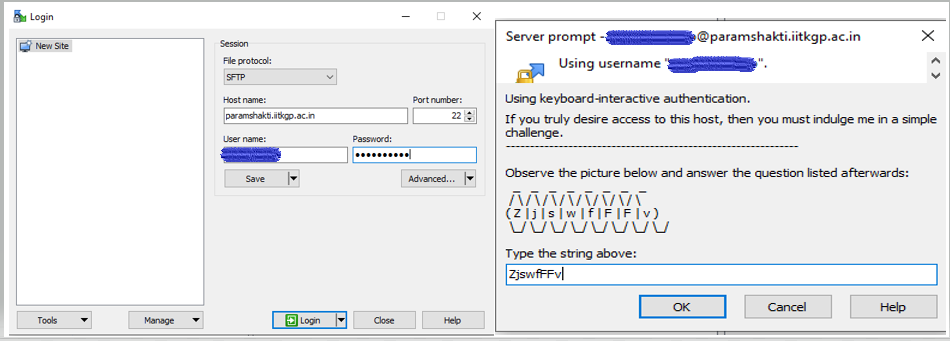
Command Prompt / Terminal (Linux & macOS)
SCP is available natively on all Unix/Linux systems. Use the -o UserKnownHostsFile=/dev/null option to avoid SSH key errors, and -r to copy directories recursively.
scp -r -o UserKnownHostsFile=/dev/null <Username>@paramshakti.iitkgp.ac.in:/home/<Username>/perl5 ./
[username@local ~]$ scp -r -o UserKnownHostsFile=/dev/null username@paramshakti.iitkgp.ac.in:/home/username/perl5 ./
The authenticity of host 'paramshakti.iitkgp.ac.in (10.171.17.201)' can't be established.
ECDSA key fingerprint is SHA256:xN9lbdCx4+ywHnsuK1McWGguquHAWCxBdSbI1mNqtlY.
Are you sure you want to continue connecting (yes/no)? yes
Warning: Permanently added 'paramshakti.iitkgp.ac.in,10.171.17.201' (ECDSA) to the list of known hosts.
If you truly desire access to this host, then you must indulge me in a simple challenge.
----------------------------------------------------------------------
  [solve the CAPTCHA shown, then enter your password]
----------------------------------------------------------------------
Password: _
[username@local ~]$ ls -ld perl5
drwxrwxr-x 2 username username 10 Mar 19 17:04 perl5
File Transfer from Outside IIT Kharagpur Campus
Modern Windows, Linux, and macOS systems provide a built-in SCP client. Open the terminal and provide port number 4422 in the scp command:
# General syntax
scp -P 4422 -o UserKnownHostsFile=/dev/null -r [source_folder] [username]@[hostname]:[destination]

# Example: local folder 'iitkgp' to home directory on PARAM Shakti
user1@login01$ scp -P 4422 -o UserKnownHostsFile=/dev/null -r iitkgp user1@paramshakti.iitkgp.ac.in:/home/user1/
C:\Users\Admin1>scp -P 4422 -o UserKnownHostsFile=/dev/null -r test username@paramshakti.iitkgp.ac.in:/home/username/
The authenticity of host '[paramshakti.iitkgp.ac.in]:4422 ([10.171.17.201]:4422)' can't be established.
ECDSA key fingerprint is SHA256:xN9lbdCx4+ywHnsuK1McWGguquHAWCxBdSbI1mNqtlY.
Are you sure you want to continue connecting (yes/no)? yes
Warning: Permanently added '[paramshakti.iitkgp.ac.in]:4422,[10.171.17.201]:4422' (ECDSA) to known hosts.
If you truly desire access to this host, then you must indulge me in a simple challenge.
----------------------------------------------------------------------
  [solve the CAPTCHA shown, then enter your password]
----------------------------------------------------------------------
Password: _

C:\Users\Admin1>