
Essentials
User Guidelines
The following policies, guidelines, and best practices for effective usage of PARAM Shakti (PS) have been adopted by the HPC Advisory Committee. These policies are subject to revision as necessary. Users of PS are expected to abide by them.
PARAM Shakti Usage Policy
- Users are required to acknowledge the use of PS in all publications, presentations, thesis, webpages, etc., by including the following or a similar statement:Users are also requested to inform the PS administration of any such outcome for annual reports/documentation/uploading on the website.Acknowledgement Template
We acknowledge National Supercomputing Mission (NSM) for providing computing resources of 'PARAM Shakti' at IIT Kharagpur, which is implemented by C-DAC and supported by the Ministry of Electronics and Information Technology (MeitY) and Department of Science and Technology (DST), Government of India.
- All announcements about PS will be made in relevant local newsgroups and/or through the website (hpc.iitkgp.ac.in). Users are encouraged to check such announcements regularly.
- PS resources are to be used for academic research purposes only.
- Project Guide/Adviser must have a user account on PS before requesting user accounts for his/her group members.
- Users should not share their password with anyone. Using the same account by multiple users is not allowed. Users should monitor their PS usage to detect unauthorized use.
- Users must not engage in hacking, reverse-engineering, or other activities that may constitute infringement of intellectual property rights. Users should not engage in activities that may bring disrepute to the facility or the Institute.
- Users should ensure that all software, tools, libraries, and materials they use comply with applicable license terms and conditions. PS administration is not responsible for unauthorized licenses or usage.
- All jobs must be submitted using the Slurm scheduler. Login nodes are meant for simple tasks only — all CPU and/or memory intensive tasks must be run on compute nodes. Running resource-intensive jobs on login nodes is strictly prohibited; in such cases, the user account will be deactivated immediately.
- Temporary scratch storage is provided to all users according to the allocated disk quota. Scratch directories are subject to automatic deletion without notice when their time limit expires. Currently, scratch directories/files have a default time limit of 30 days. Data is held in this temporary storage at the user's own risk.
- Each user will have a default disk quota of up to 50 GB in their home space and up to 2 TB (soft limit) in scratch space.
- The user is the owner and hence responsible for all data copied and generated using PS. PS administration is not responsible for the same. Users should ensure the required backup and protection of data. PS administration is not responsible for account compromise, data theft, data publication claims, etc.
- Users' data stored on the scratch directory on PS is not backed up or archived by the system administration. The PS administration is also not responsible for restoring damaged or lost files. Backing up and archiving data is the responsibility of the user and their Project Guide/Adviser.
- Inactive Accounts: Accounts (except for faculty) that are not active for more than 90 days will be temporarily locked. To unlock the account before 180 days, the user should send a request to the PS administration.
- Expired or Non-Renewed Accounts: The account will be locked and, after 90 days, the user account along with its data will be deleted. PS administration will not be responsible for any data loss after account deletion.
- Although PS administration will take utmost care in maintaining the resources, there are no guarantees that resources or services will be available at all times, that they will suit every purpose, or that data will never be lost or corrupted. System administration cannot be held responsible for data loss in such events.
- Access to PS may be unavailable at some times due to scheduled maintenance, upgrades, etc. Access may also be unavailable without notification if hardware, software, or other issues necessitate immediate maintenance. Notifications of all scheduled and unscheduled maintenance will be updated on the website (hpc.iitkgp.ac.in) or in the relevant local newsgroups.
- Faculty/Advisers are required to inform PS administration about the removal of a user account for any student leaving the campus permanently.
- Any unauthorized usage of PS will result in immediate account suspension and may be subject to appropriate disciplinary action as decided by the competent authority of the Institute.
Best Practices for HPC
Follow these practices to make efficient use of PARAM Shakti and ensure a good experience for all users.
- Do NOT run any job longer than a few minutes on the login nodes. The login node is for compilation only — always run computational jobs on compute nodes via the Slurm scheduler.
- Refer to the Quick Start Guide on the Paramshakti website — it is a good starting point for new users.
- Check the Slurm sample scripts at
/home/iitkgp/slurm-scriptsfor job submission examples. - Use the same compiler to compile all parts/modules/library-dependencies of an application. Mixing compilers (e.g.,
pgcc+icc) may cause linking or execution issues. - Choose appropriate compiler flags (e.g.,
-O3) to improve performance substantially (verify output accuracy). Refer to compiler documentation, online resources, or man pages. - Modules/libraries used for execution should be the same as those used for compilation. Specify them in the job submission script.
- Be aware of the disk space utilized by your job(s). Estimate storage requirements before submitting multiple jobs.
- Submit jobs only from
$SCRATCH. Back up results/summaries to$HOME. $SCRATCHis NOT backed up! Download all your data to your Desktop/Laptop.- Before installing any software in your home directory, ensure it is from a reliable and safe source. Ransomware is on the rise!
- Do not use spaces when creating directories and files.
- Inform PARAM Shakti support when you notice something unusual — e.g., unexpected slowdowns, missing or corrupted files.
- Do not submit jobs to the
gpuorgpu-lowpartition unless your code strictly requires GPU-based computing. - Provide the
--time(wall-time) parameter judiciously in your job submission script, as it significantly affects queue waiting time.
High-Priority Usage Charges
In addition to the regular free account, PS offers a High-Priority Queue for time-critical and sponsored research, available on a pay-per-use (recharge) basis through a paid Slurm account. The following fixed per-SU charges, recommended by the HPC Advisory Committee, apply to recharges made on or after October 1, 2026.
Important Points
- Service Unit (SU): One hour of wall-clock time on either one CPU core or one GPU.
- SUs are credited on the net amount received under the PSU project, after deducting applicable taxes, if any.
- Funds transferred to PARAM Shakti Usage (PSU) are non-refundable.
- PIs can recharge anytime; additional SUs will be appended to the project account.
- These charges apply only to the High-Priority Queue. Use of the free general queue is governed by the User Guidelines.
Usage Charges
| Resource | Internal Users (IIT Kharagpur) | External Users |
|---|---|---|
| CPU | ₹0.04 | ₹5.00 |
| GPU | ₹2.00 | ₹25.00 |
Charges per SU under the standard QoS profile. Jobs run under the priority QoS profile are billed at 5× these rates (see below).
QoS Profiles
Each paid Slurm account is associated with two QoS profiles: standard and priority. Choose the profile that suits your computational requirements and specify it in your job submission script. Jobs are subject to the resource limits of the selected profile, and its billing multiplier is applied to actual resource consumption for both SU accounting and billing.
| QoS Profile | Max Nodes | Max Cores | Base Priority | Billing Multiplier |
|---|---|---|---|---|
| standard | 10 | 400 | 1× | 1× |
| priority | 40 | 1,600 | 10× | 5× |
Effective charges per SU of actual usage under each profile:
| Resource | QoS Profile | Internal Users | External Users |
|---|---|---|---|
| CPU | standard | ₹0.04 | ₹5.00 |
| CPU | priority | ₹0.20 | ₹25.00 |
| GPU | standard | ₹2.00 | ₹25.00 |
| GPU | priority | ₹10.00 | ₹125.00 |
The higher billing multiplier offsets the higher scheduling priority and larger resource limits of the priority profile. Please reserve it for genuinely time-critical work.
Transition from Slab-Based Billing
- The volume-based slab billing applies to recharges made up to 30 September 2026. From 1 October 2026 it is replaced by the fixed-rate model above.
- Recharges on or before 30 September 2025: for accounts whose cumulative recharges up to that date exceed ₹2,00,000, any unused SU balance as of 30 September 2025 will be reconciled at the revised rates, and the reconciled balance credited within two weeks of the revised mechanism being implemented. Accounts with cumulative recharges of ₹2,00,000 or less are unaffected.
- Recharges from 1 October 2025 to 30 September 2026: remain governed by the slab rates in force at the time of the transaction and are not reconciled. Unused SUs carry forward and are consumed under the fixed-rate model without recalculating their purchased value.
Previous slab-based rates (recharges made up to 30 September 2026)
In effect from 1 August 2022 to 30 September 2026, for users of IIT Kharagpur. Charges were cumulative across bands.
| Band | CPU SU Range | CPU Rate (per SU) | GPU SU Range | GPU Rate (per SU) |
|---|---|---|---|---|
| Band I | 0 – 1,00,000 | ₹0.50 | 0 – 1,000 | ₹10 |
| Band II | 1,00,001 – 5,00,000 | ₹0.25 | 1,001 – 10,000 | ₹5 |
| Band III | 5,00,001 – 10,00,000 | ₹0.10 | 10,001 – 50,000 | ₹2 |
| Band IV | 10,00,001 – 1,00,00,000 | ₹0.02 | 50,001 – 2,50,000 | ₹1 |
External users were charged a flat ₹1.20 per CPU SU and ₹12 per GPU SU.
This policy is reviewed periodically by the HPC Advisory Committee. QoS resource limits and scheduling parameters may be adjusted by the HPC Administration as required; any change to usage charges, billing multipliers or SU accounting requires the Committee’s review.
Modes of Payment
Usage charges are accepted under the SRIC project “PARAM Shakti Usage Charge” (Code: PSU).
- To pay from your SRIC project or FDF, send an email to Deepayan Maiti (deepayan@eoffice.iitkgp.ac.in), SRIC, mentioning your project code and amount, with a copy to hpc@iitkgp.ac.in. Use the following template:Todeepayan@eoffice.iitkgp.ac.inCchpc@iitkgp.ac.inSubjectPARAM Shakti Usage Charge (PSU)
Name:
Employee Code:
An amount of Rs. __________ (Rupees **amount in words** Only) may be
credited to the PARAM Shakti Usage Charge (PSU) for the use of
computational resources of PARAM Shakti by my group.
The amount may be debited from my SRIC project ______ (Code)/FDF.
- Upon receiving confirmation from SRIC, the HPC team will contact you regarding the breakdown of the total amount into CPU and GPU. SRIC will provide a receipt. A usage certificate for submission to funding agencies will also be provided.
How to Submit Jobs in High Priority Queues
By default, only the Faculty/PI user account can use the high priority queue against available SU. Access can be granted to specific users under their account using the acct-manage command.
For chargeable partitions, add the following options to your Slurm batch script:
#SBATCH -A "FAC_projectcode"
#SBATCH -q "FAC_projectcode"
Example: If dcd is the Faculty/PI user account and c3d is the SRIC project code, to use the medium partition:
#SBATCH -p medium
#SBATCH -A dcd_c3d
#SBATCH -q dcd_c3d
High-Priority users should verify job priority using the sprio command. If the QoS is not receiving a higher priority, resubmit with the correct account and notify HPC Support.
How to Check SU Balance
Use the acct-manage command and select option p in the main menu to view project details and available balance. High priority account users can also run hpabalance to view their latest account balance.
Service Unit Calculator
Calculate the compute time you get for a budget, or estimate the cost of a given amount of compute time, at the High-Priority rates in effect from 1 October 2026. Results update instantly as you type.
Enter Budget (₹)
Enter Compute Time
Tutorials & Self-Learning
External tutorials and workshop materials for self-paced learning on parallel computing and HPC tools, hosted by the HPC facility and C-DAC.
Parallel Computing with MATLAB
Steps to configure MATLAB to submit jobs to the PARAM Shakti and DGX AI clusters, retrieve results, and debug errors. Adapted from the official PDF guide linked at the end of this section.
This guide covers configuring MATLAB (from the cluster itself, or from your own desktop) to run serial and parallel jobs on PARAM Shakti and the DGX AI Cluster, submitting interactive and batch jobs, and debugging failed jobs.
Initial Configuration — Running MATLAB on the Cluster
After logging into the cluster, configure MATLAB to run parallel jobs on the cluster by calling the shell script configCluster.sh.
$ module load matlab[/VERSION]
$ configCluster.sh
Jobs will run across multiple nodes on the cluster rather than on the host machine.
Initial Configuration — Running MATLAB on the Desktop
This setup is for job submission when MATLAB is installed on your own machine and jobs run remotely on the cluster. It needs to be done once per cluster, per MATLAB version installed on your machine.
- Start MATLAB and run
userpathto find your MATLAB user folder. - Download the MATLAB plugin scripts and extract the ZIP contents into that folder.
- Create a new cluster profile by running
configClusterand selecting a cluster from the prompt.
configCluster
[1] ai-cluster
[2] param-shakti
Select a cluster [1-2]:
Submission to the cluster requires SSH credentials — you will be prompted for username, 2FA, and password. To run jobs on your local machine instead of the cluster, use the Process profile: c = parcluster('Processes');
Configuring Jobs
Before submitting a job, scheduler flags such as partition, account, e-mail, GPUs, memory, and walltime can be set via AdditionalProperties. None of these are required.
% Get a handle to the cluster
c = parcluster;

% REQUIRED — specify the partition
c.AdditionalProperties.Partition = 'partition-name';

% OPTIONAL
c.AdditionalProperties.AccountName = 'account-name';        % account
c.AdditionalProperties.Constraint = 'feature-name';         % constraint
c.AdditionalProperties.EmailAddress = 'user-id@iitkgp.ac.in'; % email on job status
c.AdditionalProperties.GPUsPerNode = 1;                     % GPUs per node (default: 0)
c.AdditionalProperties.GPUCard = 'gpu-card';                % specific GPU card
c.AdditionalProperties.MemPerCPU = '6GB';                   % memory per core (default: 4GB)
c.AdditionalProperties.ProcsPerNode = 4;                    % cores per node
c.AdditionalProperties.QoS = 'qos-name';                    % quality of service
c.AdditionalProperties.RequireExclusiveNode = true;         % node exclusivity (default: false)
c.AdditionalProperties.Reservation = 'reservation-name';    % reservation
c.AdditionalProperties.WallTime = '1-05:30';                % wall time (D-HH:MM)

% Persist changes between MATLAB sessions
c.saveProfile

% View the current configuration
c.AdditionalProperties

% Unset a value when no longer needed
c.AdditionalProperties.EmailAddress = '';
c.AdditionalProperties.RequireExclusiveNode = false;
Interactive Jobs
To run an interactive pool job on the cluster, continue to use parpool as before — the pool now runs across multiple nodes on the cluster instead of a local host.
% Get a handle to the cluster
c = parcluster;

% Open a pool of 64 workers on the cluster
pool = c.parpool(64);

% Run a parfor over 1000 iterations
parfor idx = 1:1000
    a(idx) = rand;
end

% Delete the pool when it's no longer needed
pool.delete
Independent Batch Jobs
Use the batch command to submit asynchronous jobs to the cluster. It returns a job object used to access the submitted job’s output — see the MATLAB documentation for more on batch.
% Get a handle to the cluster
c = parcluster;

% Submit a job to query where MATLAB is running on the cluster
job = c.batch(@pwd, 1, {}, 'CurrentFolder', '.');

% Query job state, then fetch results once finished
job.State
job.fetchOutputs{1}

% Delete the job once results are no longer needed
job.delete
To retrieve running or completed jobs, call parcluster again — its Jobs array lists everything queued, running, finished, or failed.
c = parcluster;
jobs = c.Jobs

% Get a handle to the second job in the list
job2 = c.Jobs(2);
fetchOutputs retrieves function output arguments; if batch was called with a script instead of a function, use load instead. Data written to disk on the cluster must be retrieved directly from the file system (e.g. via SFTP).
% Fetch all results from the second job in the list
job2.fetchOutputs{:}

% Alternate: load results if the job was a script instead of a function
job2.load
Parallel Batch Jobs
The batch command also supports parallel workflows. Save this example separately as parallel_example.m:
function [sim_t, A] = parallel_example(iter)
    if nargin == 0
        iter = 8;
    end
    disp('Start sim')
    A = nan(iter,1);
    t0 = tic;
    parfor idx = 1:iter
        A(idx) = idx;
        pause(2)
        idx
    end
    sim_t = toc(t0);
    disp('Sim completed')
    save RESULTS A
end
This time, specify a Pool argument when calling batch:
% Get a handle to the cluster
c = parcluster;

% Submit a batch pool job using 4 workers for 16 simulations
job = c.batch(@parallel_example, 1, {16}, 'CurrentFolder', '.', 'Pool', 4);

% View current job status, then fetch results once finished
job.State
job.fetchOutputs{1}

ans =

    8.8872
This job ran in 8.89 seconds using four workers. Pool jobs always request N+1 CPU cores, since one worker manages the batch job and the pool of workers — a job needing eight workers requires nine CPU cores.
Run the same simulation with a larger pool, and keep track of the job ID to retrieve results later:
% Submit a batch pool job using 8 workers for 16 simulations
job = c.batch(@parallel_example, 1, {16}, 'CurrentFolder', '.', 'Pool', 8);

% Get the job ID, then clear job from workspace (as though MATLAB exited)
id = job.ID
id =

    4

clear job
With a handle to the cluster, findJob searches for the job with the given ID:
% Get a handle to the cluster, then find the old job
c = parcluster;
job = c.findJob('ID', 4);

% Retrieve state, then fetch the results
job.State
ans =

    finished

job.fetchOutputs{1};
ans =

    4.7270
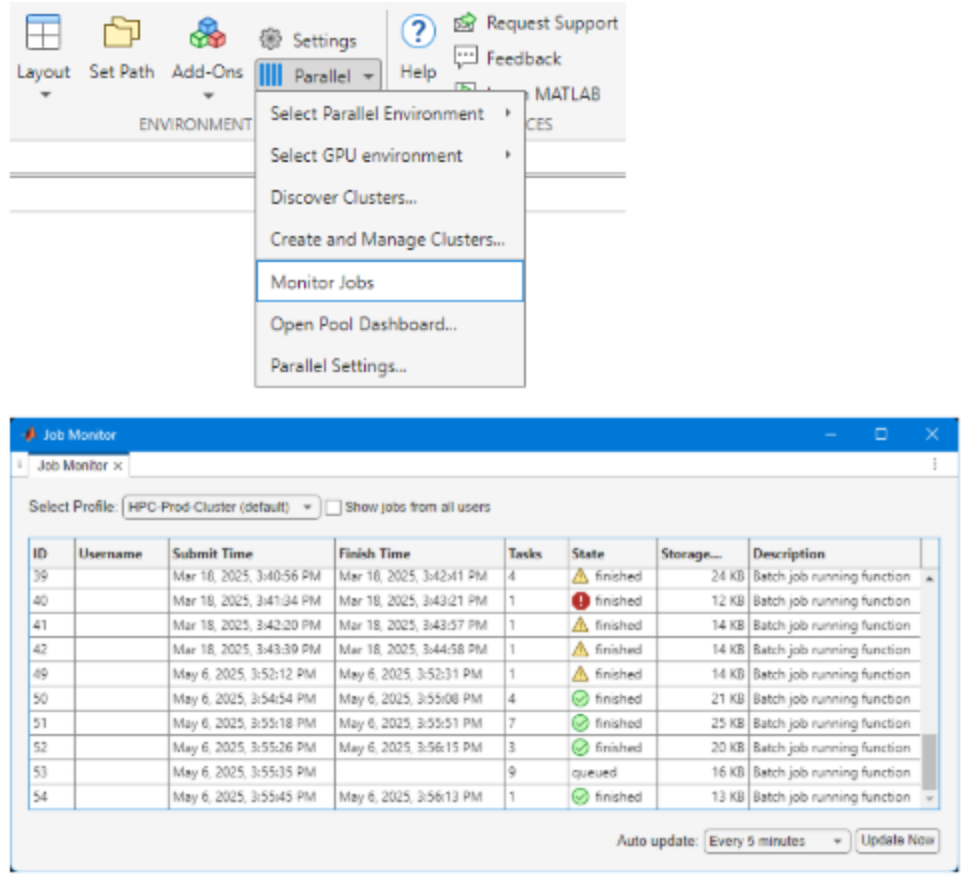
This run took 4.73 seconds using eight workers — for some applications, allocating too many workers gives diminishing (or negative) returns as overhead exceeds computation time. Try a few different worker counts to find the ideal number for your job. Results can also be retrieved via the desktop GUI's Job Monitor (Parallel > Monitor Jobs).
Debugging
If a job produces an error, call getDebugLog to view the error log file — specify the task for an independent job, or just the job object for a Pool job.
% Independent job — specify the task
c.getDebugLog(job.Tasks)

% Pool job — specify only the job object
c.getDebugLog(job)
If the cluster admin needs the scheduler ID of a job (e.g. its Slurm job ID) to help troubleshoot, retrieve it with getTaskSchedulerIDs:
job.getTaskSchedulerIDs()
ans =

    25539
Helper Functions
| Function | Description | Notes |
|---|---|---|
clusterFeatures | Lists cluster features/constraints | |
clusterGpuCards | Lists cluster GPU cards | |
clusterPartitionNames | Lists cluster partition names | |
disableArchiving | Modifies file archiving to resolve file mirroring issues | Desktop only |
fixConnection | Reestablishes cluster connection (e.g. after VPN reconnection) | Desktop only |
seff | Displays Slurm statistics on the efficiency of resource usage by a job | |
willRun | Explains why a job is queued |
To Learn More
- Parallel Computing Overview
- Parallel Computing Documentation
- Parallel Computing Coding Examples
- Parallel Computing Tutorials
- Parallel Computing Videos
- Parallel Computing Webinars
Search these topics on mathworks.com/products/parallel-computing, or use the resources below.
C-DAC HPC Workshops
Slides, videos, and sample scripts from virtual workshops on supercomputing and parallel programming, jointly organized by C-DAC and the HPC facility.
These workshops cover SLURM job submission, shared/distributed-memory parallel programming (OpenMP, MPI), Intel code-optimization tools, and GPU computing with CUDA and OpenACC — recorded and made available for self-paced learning.
Supercomputing for PARAM Shakti Users (23–27 Nov 2020)
A five-day virtual workshop jointly organized by the Centre for Development of Advanced Computing (C-DAC), Pune, and IIT Kharagpur. Download the full agenda (PDF).
Day 1–2 — SLURM & Job Submission
Introduction to SLURM, batch scripts, and the job submission procedure, with sample batch scripts for serial, parallel, and hybrid (MPI+OpenMP) jobs and an explanation of each script’s flags.
- Slides: PARAM Shakti Overview, SLURM, Job Submission
- Video: Day 1–2 recording
Day 3 — OpenMP & MPI
Shared-memory parallelism with OpenMP, and distributed-memory parallelism with MPI (point-to-point and collective communication).
- Slides: OpenMP, MPI Point-to-Point, MPI Collective, Parallel Matrix Multiplication
- Video: Day 3 recording
Sample scripts from this workshop are available on the cluster at /home/apps/reference/training.
Day 4 — Intel Tools & Optimization
Intel code-optimization tools, plus a demonstration of the Intel AI Portfolio and Python.
- Slides: Intel Threading Advisor, Intel Vectorization Advisor, Intel VTune Amplifier, OpenVINO, Intel DAAL, Vectorization for C++
Day 5 — GPU Computing (CUDA / OpenACC)
GPU computing with NVIDIA CUDA and OpenACC, including mixed-precision training, accelerated data science, and AI on HPC.
- Slides: GPU Computing, Mixed Precision & TensorRT, AI on HPC, Accelerated Data Science, OpenACC
- Video: Day 5 recording
HPC Software Workshop (09 Dec 2022)
A virtual workshop on HPC software jointly organized by C-DAC Bengaluru and IIT Kharagpur. Download the agenda (PDF) or watch the recording.
- CAPC-AutoPar
- C-DAC HPC Profiler v0.9
- HPC Dashboard v5.0
- ParaDE — IDE for HPC
- Parallel Computing (NSM Meet)
- Programming with OpenMP
- PU Architecture
- Sumegha Cloud Lab Kit
- Suparikshan — Monitoring & Management
THINK PARALLEL Training (30 Jan – 03 Feb 2023)
A one-week in-person training, "THINK PARALLEL: Parallel Programming for Engineers & Scientists," organized by C-DAC Bengaluru at C-DAC Knowledge Park. Download the brochure (PDF).